Link
Interactive component to help users navigate to new pages.
The <Link> component is an interactive element that redirects users to different pages or sections within a website or application. It can also be used to enable file downloads, open the user's default email client to compose a new message, or show a specified address in a map application.
Anatomy
A link consists of text that indicates what the link will direct the user to. To distinguish a link from regular text, it is usually underlined. A link that leaves the current window also carries an icon after its label.
- Label: The text that names the destination, underlined to set it apart from the surrounding text.
- New-window icon (automatic): Sits after the label when the link opens a new window or tab. You never add it yourself, see Opening in new windows or tabs.
Appearance
The appearance of a component can be customized using the variant and size props. These props adjust the visual style and dimensions of the component, available values are based on the active theme.
| Property | Type | Description |
|---|---|---|
variant | default | secondary | master | admin | The available variants of this component. |
size | default | small | The available sizes of this component. |
The Link component supports variants to match different navigation contexts.
| Variant | Description | When to use |
|---|---|---|
default | Colored link text matching the brand accent. This is the default variant. | Standard inline navigation links within text content. |
secondary | Bold, underlined link in the foreground color that removes underline on hover. | Links that should be prominent but don't use the brand color, often in headers or navigation areas. |
master | Link with a lock icon in the master access color. | Inline actions reserved for Reservix employees (master access). |
admin | Link with a key icon in the admin access color. | Inline actions reserved for developers (admin access). |
The access variants mark links to internal-only actions. See the Admin- and Mastermark pattern for guidance on access marks.
Usage
Links serve as essential navigational tools in web design, enabling users to move seamlessly within an application, visit different websites or jump to specific elements on the same page. They can even be used to directly open apps to compose an email or make a call.
Using descriptive and meaningful labels for links is crucial to clearly indicate their destination. Generic phrases can leave users confused and helpless. Overusing links, especially inline, can overwhelm users and obscure their next steps. Use them sparingly to avoid clutter.
Do
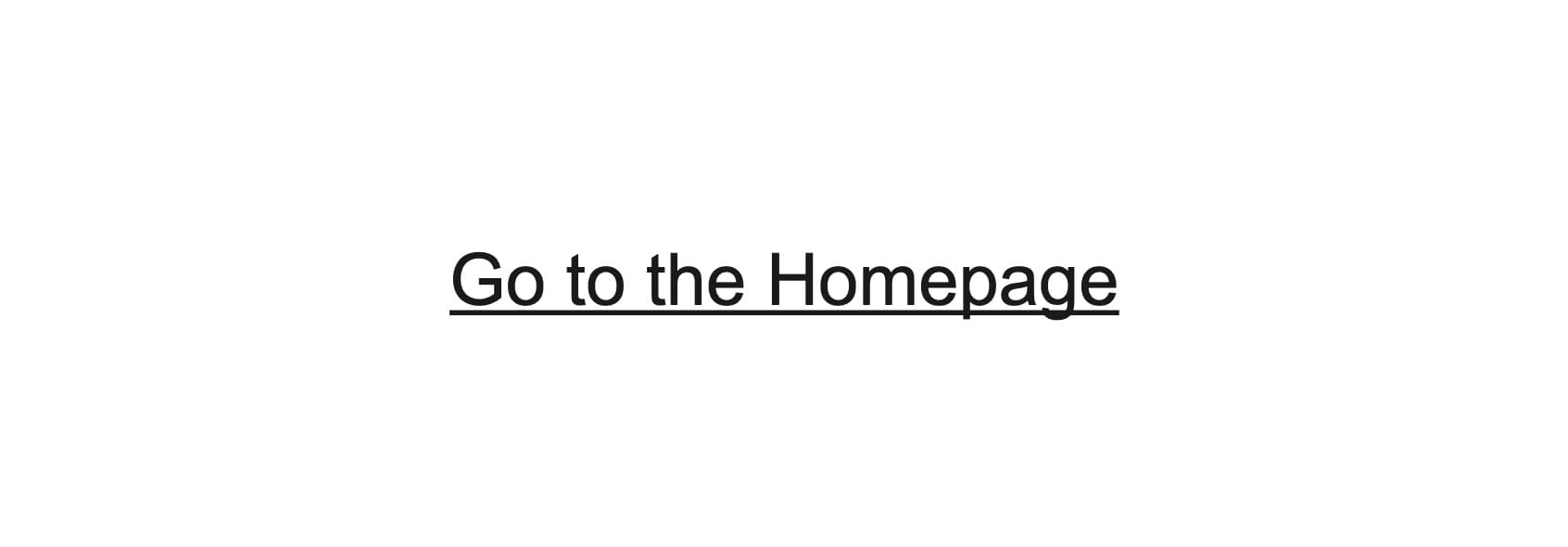
Provide a meaningful descriptive label to the link that clearly indicates the link's destination.
Don't
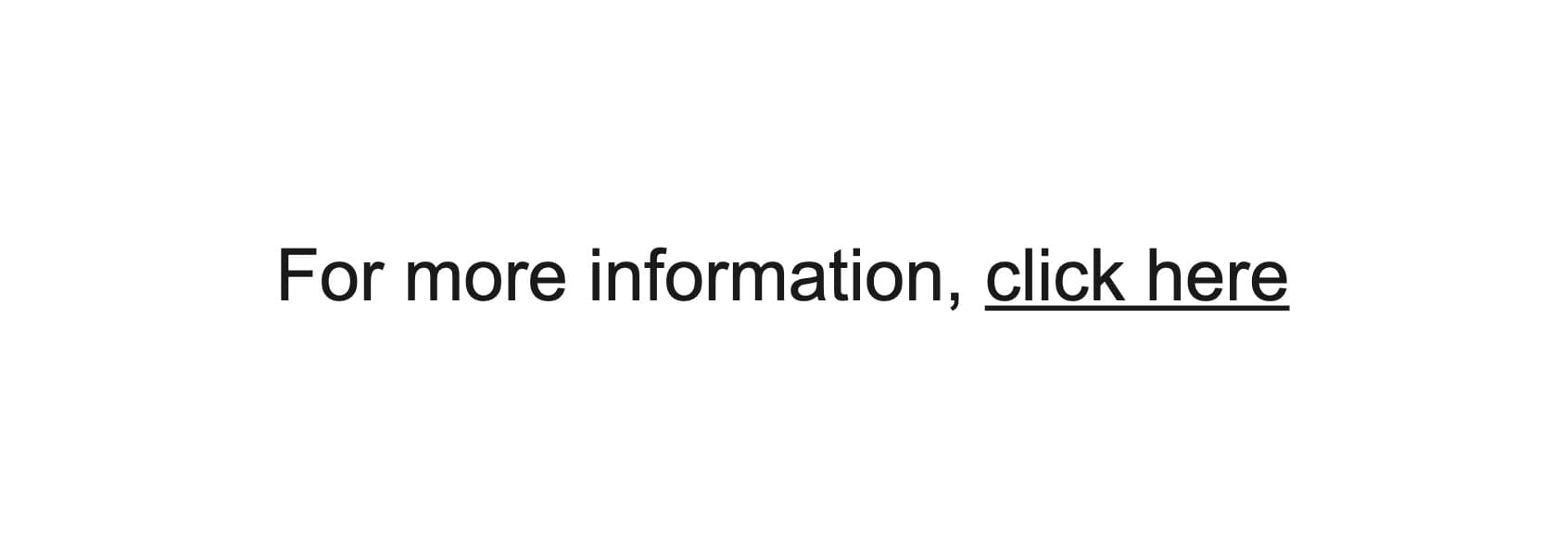
Don't use generic phrases like "click here" or "go to" on links.
Opening in new windows or tabs
Avoid opening links in new windows or tabs as it can be disorienting for users. It's acceptable to do so only when necessary, such as when the link leads to an external site, or when there's a risk of users losing their current place or task.
A link that opens a new window or tab marks itself with an external-link icon after the label plus a hidden "opens in a new window" warning for screen readers. Same-window targets (_self, _top, _parent) are left alone, as are links that open nothing: disabled ones, ones with no href, and download ones.
The warning says "window", not "tab", because the marker follows the target and only the browser decides whether a new browsing context opens as a tab or a window.
With target="_blank", rel defaults to noopener. Pass your own rel to override it. A named window gets no default rel, because noopener makes the browser ignore the window name and open a new tab on every click instead of reusing the window.
That trade has a security half. Without noopener, the document you open keeps a live window.opener reference back to your page and can navigate it somewhere else. Browsers have severed that for _blank since 2021, but not for named targets. So don't point a named window at an origin you don't control, and use _blank unless you genuinely need the window reused.
If you pass your own aria-label, the warning is appended to it, because an aria-label replaces a link's content and would otherwise hide the warning. With aria-labelledby the warning is referenced by id instead, so it reaches the name either way.
You don't opt into the indicator and you can't opt out of it. That is deliberate. An indicator is only worth anything if it appears on every link that leaves the current window, because users learn to read its absence as "this one stays here". If a link should not carry the icon, don't force the new window, and let people decide for themselves how to open it.
For the reasoning behind warning users in the first place, see the W3C techniques on opening new windows only when necessary and giving advance warning when a link opens a new window.
Buttons or links
For actions that will change data, alter a state, or trigger a high-emphasis action, use a button instead of a link.
You can find more details on this on the button component page.
Phone numbers and emails
When using links with phone numbers (tel:) or emails (mailto:), it's important to ensure they serve a clear navigational purpose while triggering specific actions. For example, a phone number link should automatically initiate a call when clicked, and an email link should open the user's email client.
Make sure that the link text and any accompanying icons clearly indicate the action that will be triggered and the intended destination.
Do
Clearly indicate the action that will be triggered.
Don't
Don't use vague labels without specifying how to reach out.
Download links
Using the download attribute on an anchor element causes the browser to treat the linked URL as a download and allows setting a filename for the download.
Always indicate if a link triggers a download, and make the linked text clear about what will be downloaded, including the file type and size.
Do
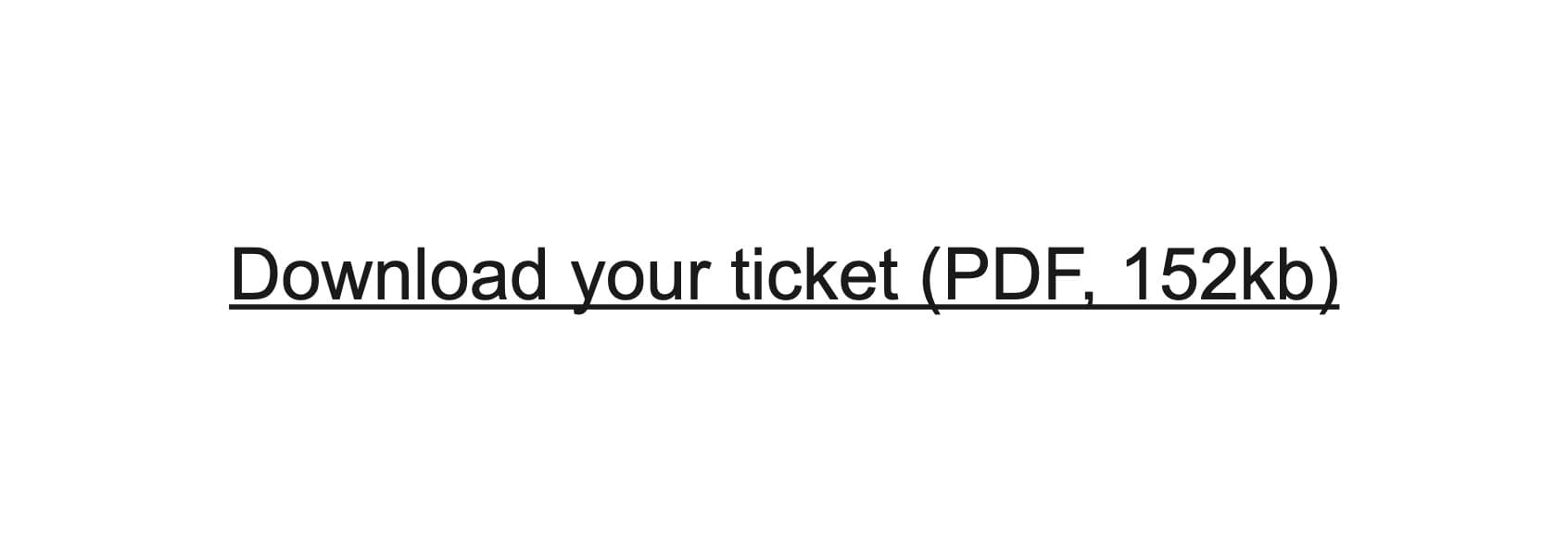
Clearly indicate what will be downloaded, including the file type and size.
Don't

Don't use download links without indicating they trigger a download.
Integrating with a router
The <Link> component can be seamlessly integrated with your app's router (like Tanstack Router, Next.js or React Router) to retain all the accessibility features and functionality of the <Link> component.
For more details, you can read about this integration on the "RouterProvider" page.
Props
Prop
Type
Accessibility props (4)
Prop
Type
DOM event handlers (63)
Prop
Type